WapUP Guide

Complete guide to access and use the WapUP platform to convert WhatsApp conversations into documents

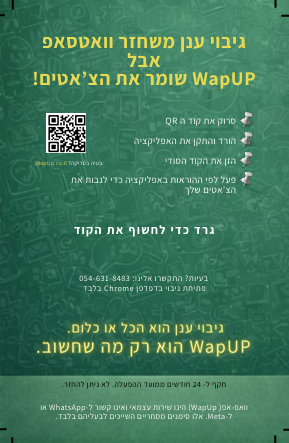
Voucher Instructions

  • Purchase a voucher from the market
  • On the back of the voucher, you will find a scratch area
  • Scratch the area carefully to reveal your Serial Number and Secret Code
  • Scan the QR Code printed on the voucher using your mobile camera or any QR scanner
  • The QR code will redirect you to the official website
  • Click on the "Install" button to install the app on your device
  • Use the Secret Code to access the platform
  • Keep your Serial Number safe for support purposes
  • If you face any issues, call the number printed on the voucher and provide your Serial Number for assistance
Voucher Back Side - Scratch Code and QR
1

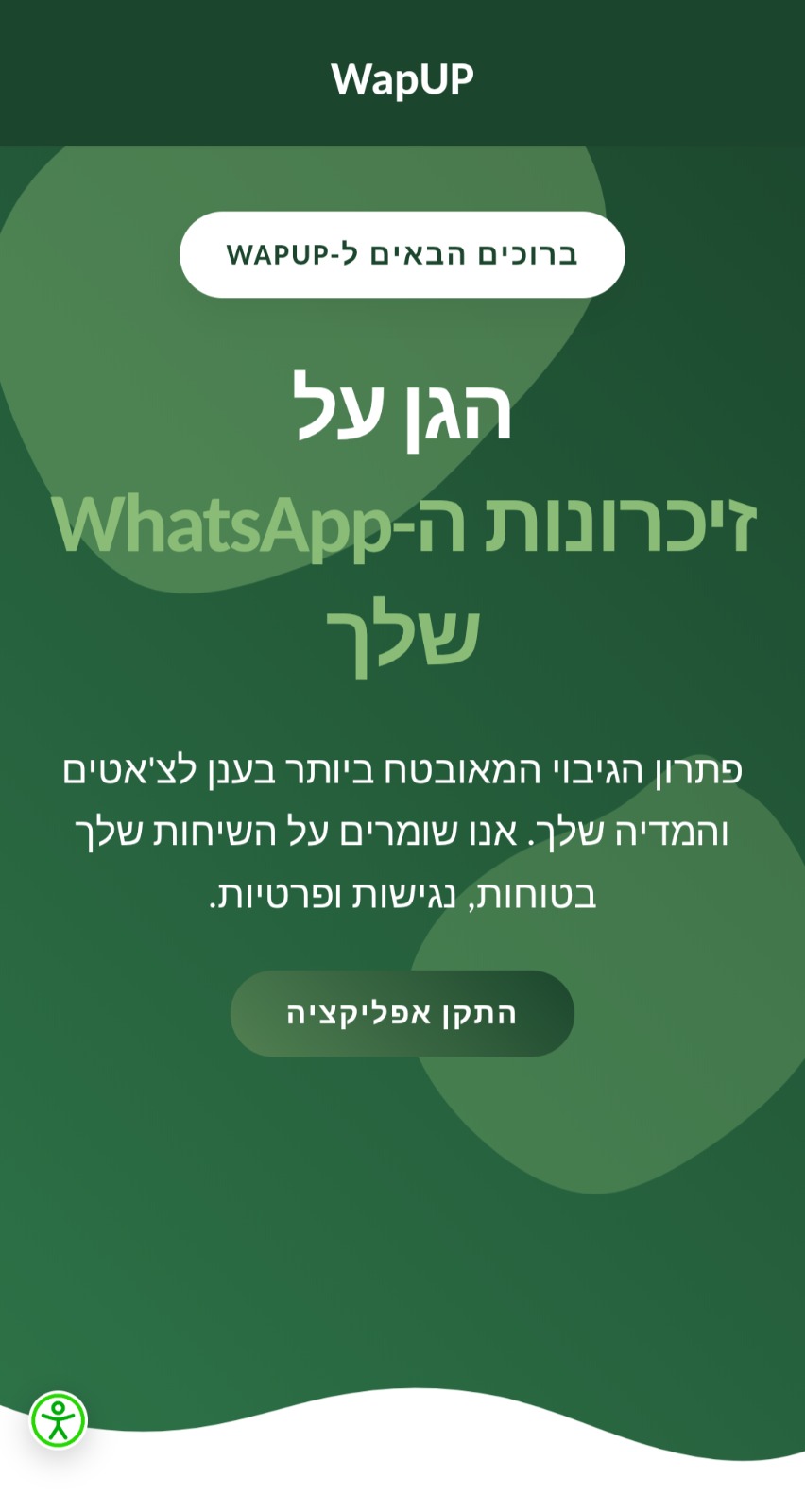
Install WapUP (Secure Platform Access)

Get access by purchasing a voucher and scanning the QR code:

  • Voucher – Purchase a voucher to gain access
  • QR code – Scan the code on the voucher; it opens wapup.co.il
  • Install – Tap "Install" to add the WapUP Progressive Web App to your device
Install WapUP (Secure Platform Access)
2

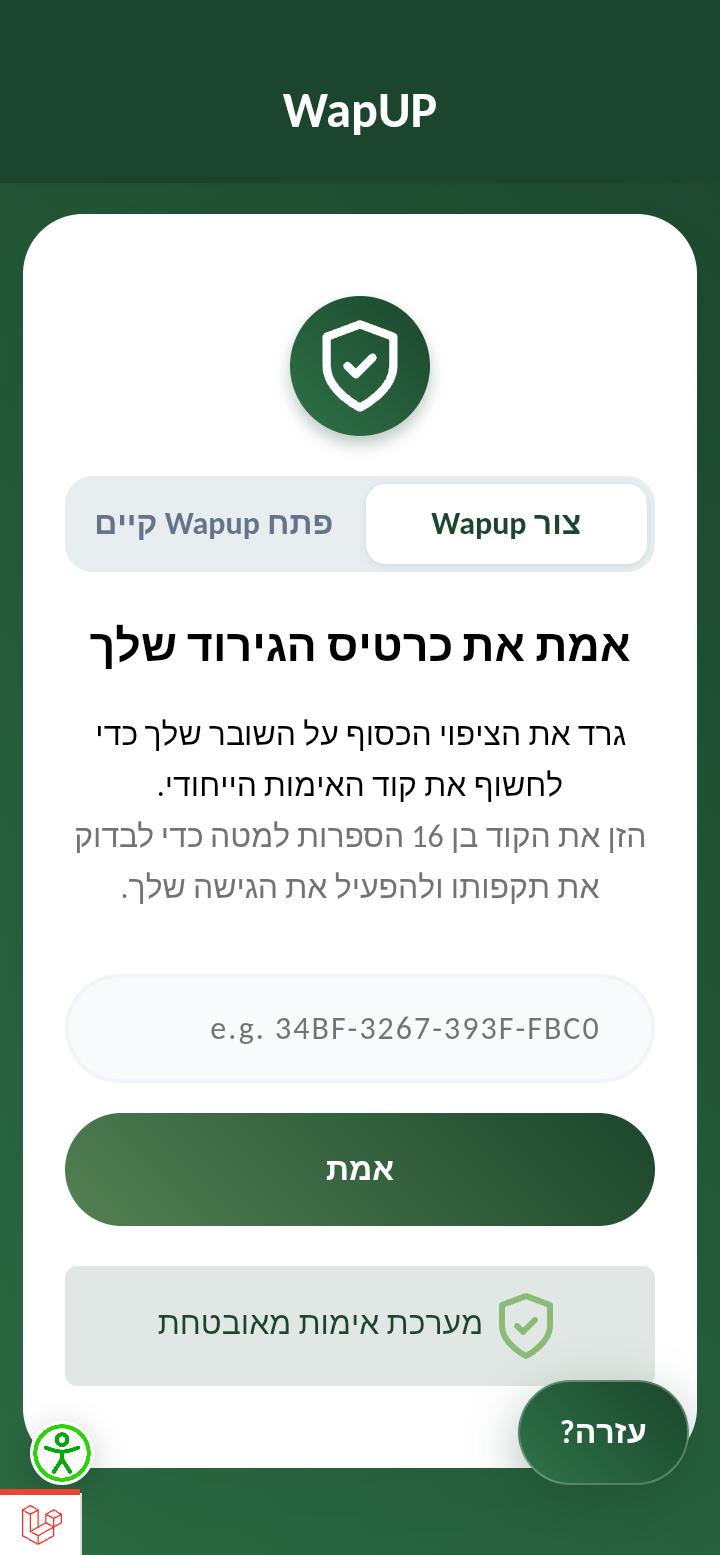
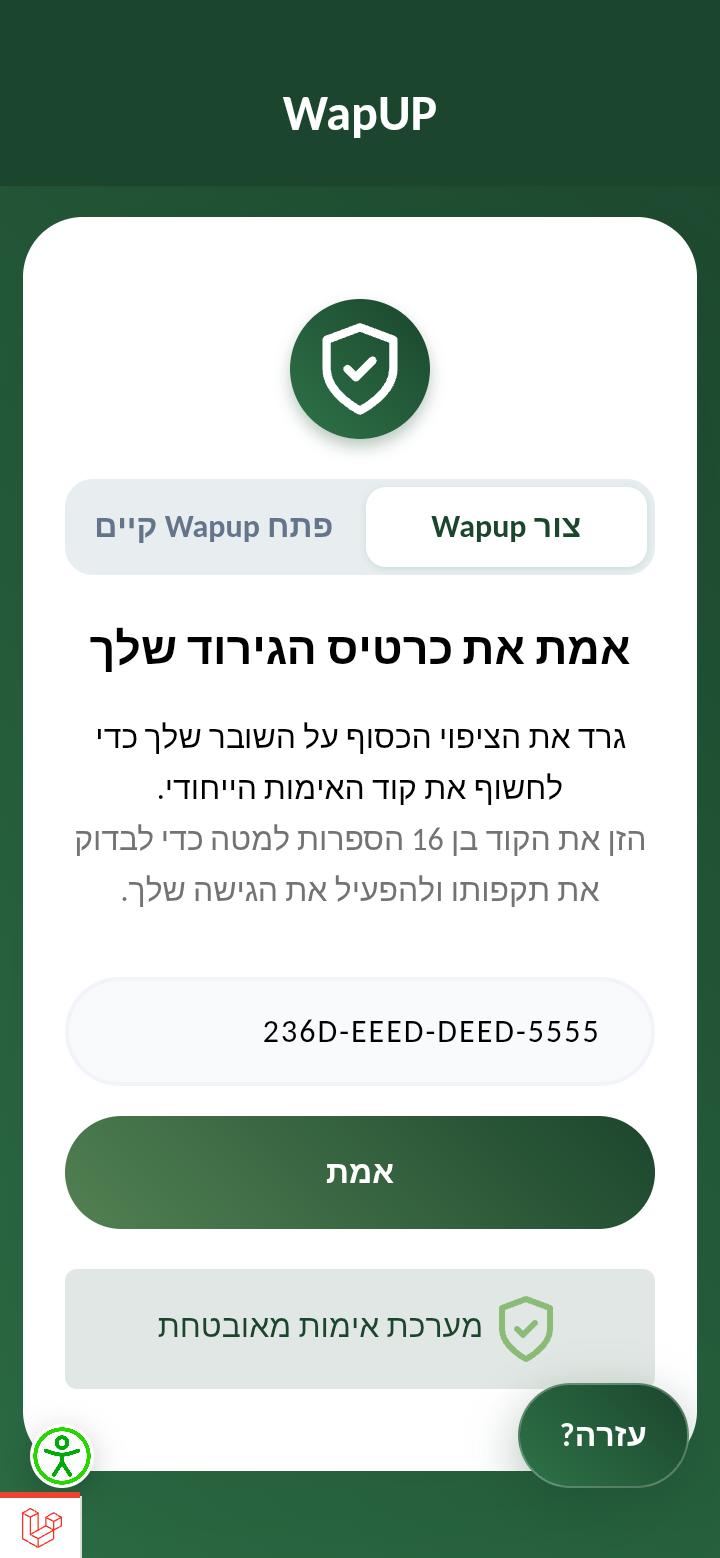
Verify Your Voucher

After installing the PWA:

  • Enter the secret code from the back of the voucher
  • The system verifies the code
  • You are then redirected to the WhatsApp form
Verify Your Voucher
Verify Your Voucher
3

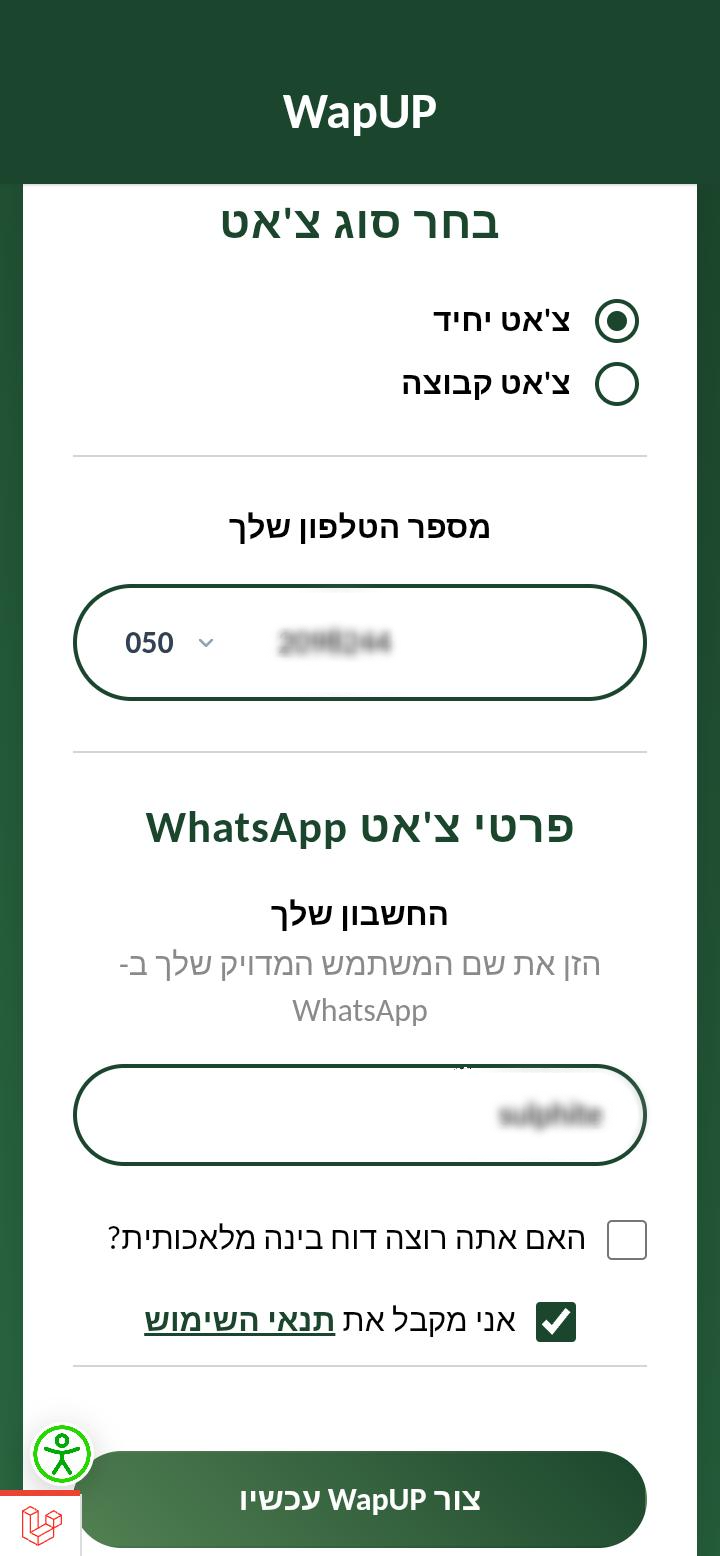
Single Chat Setup

  • Select Single Chat on the form
  • Your Phone Number – Enter your number with the area code prefix
  • Your Account – Enter your exact WhatsApp username
  • AI Report (optional) – Check the box if you want an AI-generated report
  • Terms of Use – Check the acceptance box; tap the link to read the full terms
  • Tap "Create WapUP now" to start
Single Chat Setup
4

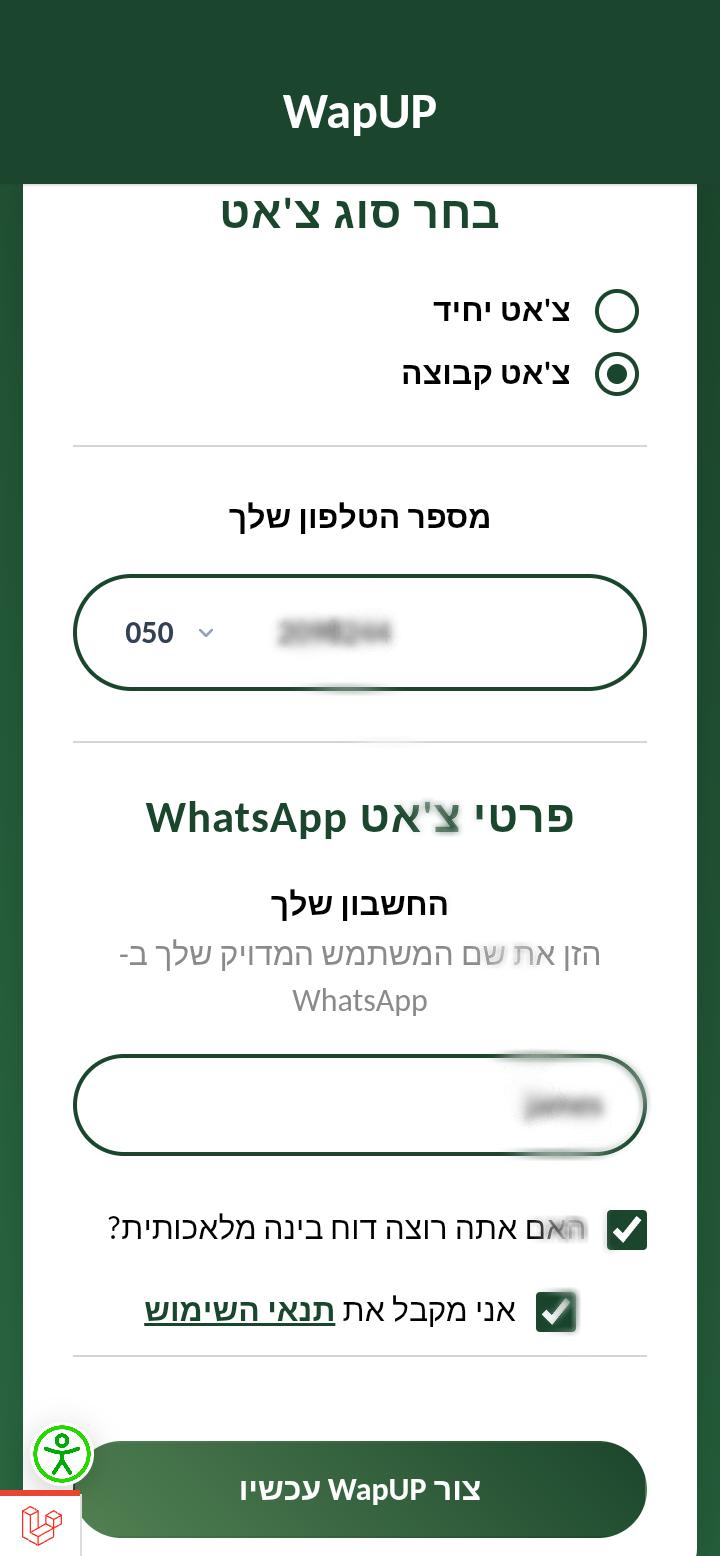
Group Chat Setup

  • Select Group Chat on the form
  • Your Phone Number – Enter your number with the area code prefix
  • Your Account – Enter your exact WhatsApp username
  • AI Report (optional) – Check the box if you want an AI-generated report
  • Terms of Use – Check the acceptance box; tap the link to read the full terms
  • Tap "Create WapUP now" to start
Group Chat Setup
5

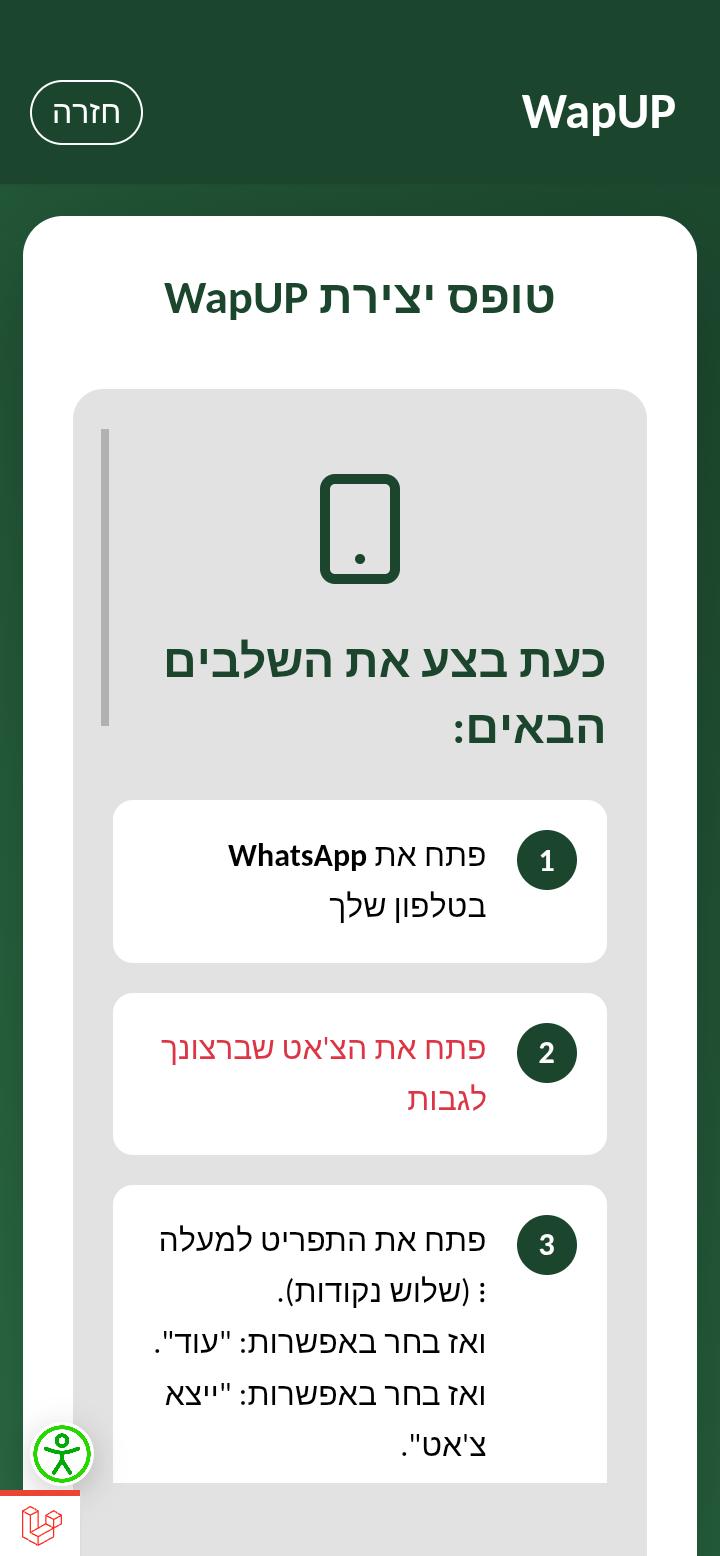
Export & Upload – Android

  • In WhatsApp, open the chat or group → tap three dots (⋮) → More → Export Chat
  • Choose Include Media or Without Media
  • Tap "Start WapUp", then Share and select the WapUp app to share the exported file
Export & Upload – Android
6

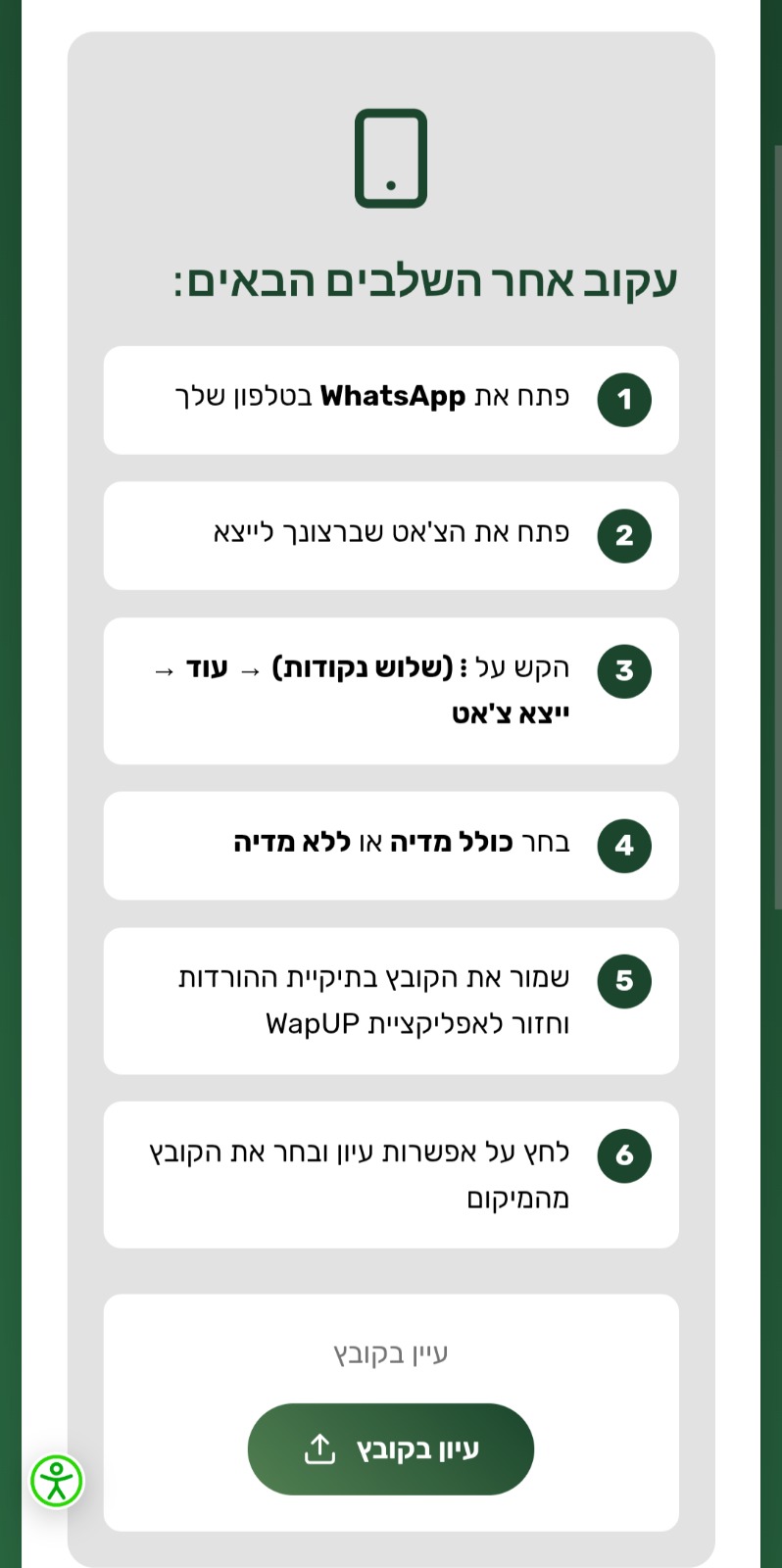
Export & Upload – iPhone

  • In WhatsApp, open the chat → tap three dots or options → Export Chat
  • Choose Include Media or Without Media
  • Save the file (e.g. in Downloads), then use "Browse" in WapUP to select and upload it
Export & Upload – iPhone
7

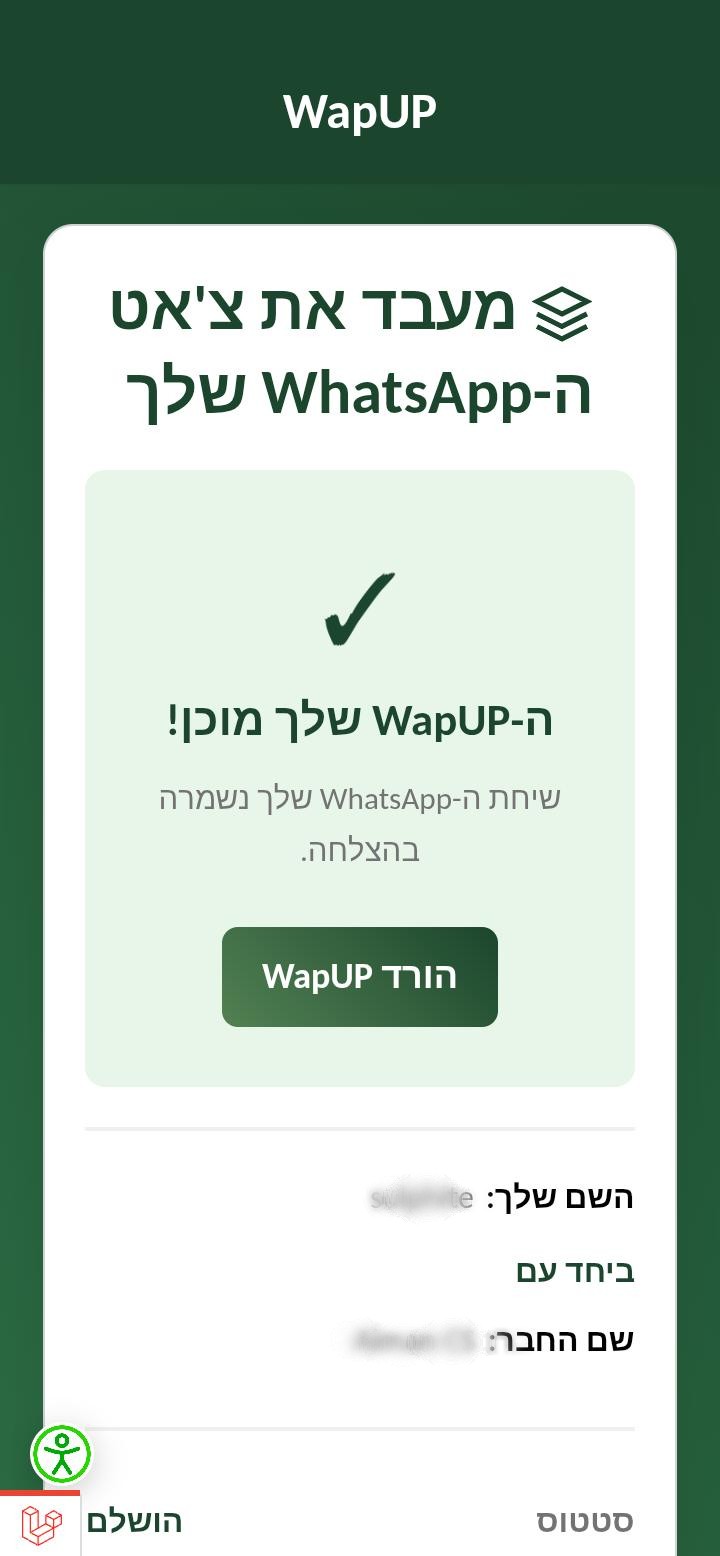
Download Your WapUp

  • Generation starts automatically after upload
  • Your chat is converted into an HTML document
  • Wait for it to finish; it may take a few minutes for long chats
  • When generation is complete, your conversation is ready as an HTML document
  • Tap "Download WapUp" to save the file to your device
Download Your WapUp
8

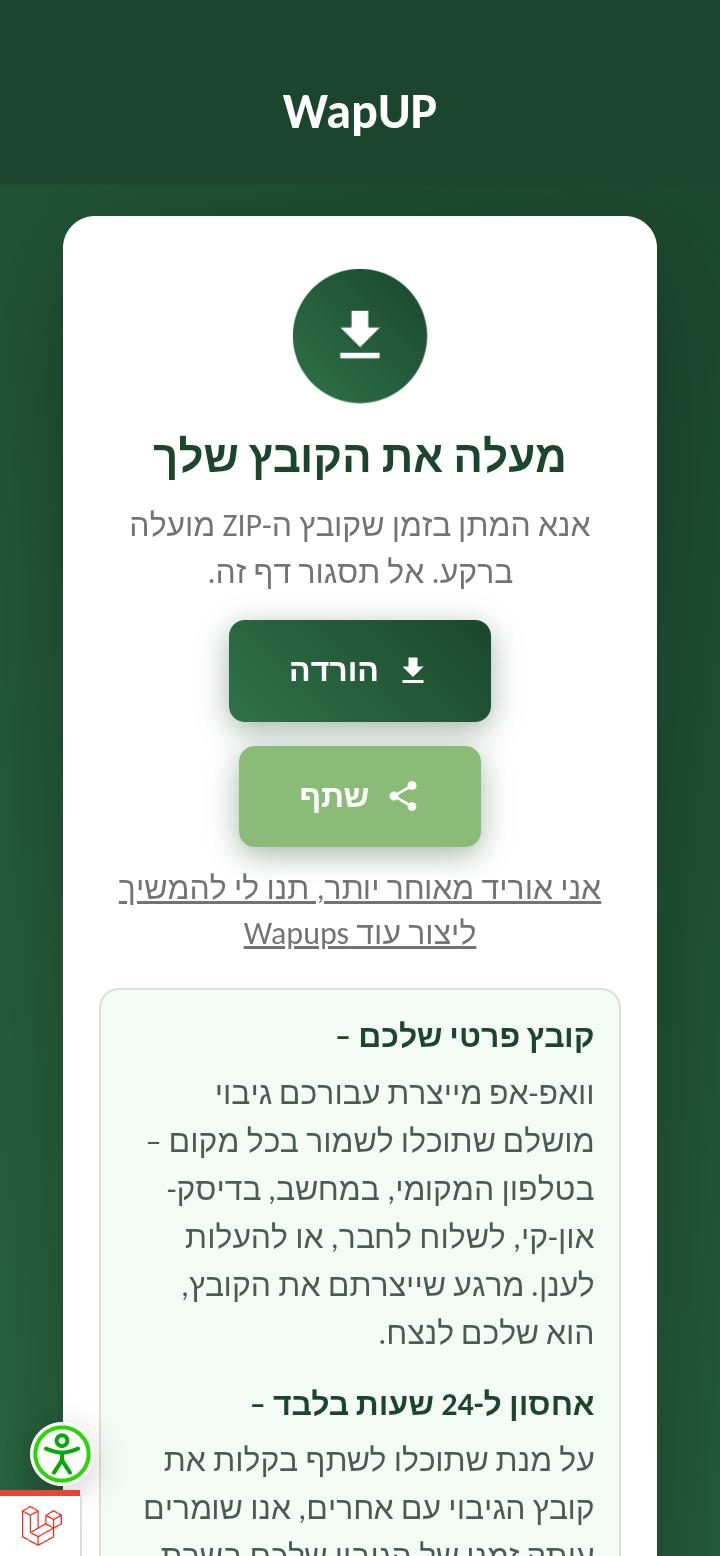
Download & Share Your WapUp

  • Tap "Download" to save the backup file to your device
  • Tap "Share" to send the file to friends or group members
  • "I'll download later, let me continue" lets you proceed without downloading now
  • "Create more Wapups" starts another conversion
  • Your private file – WapUP creates a complete backup you can save anywhere (phone, computer, USB, share with a friend, or upload to the cloud). Once created, the file is yours to keep
  • 24-hour storage only – we keep a temporary copy on our servers for up to 24 hours so you can share easily, then delete it automatically
Download & Share Your WapUp

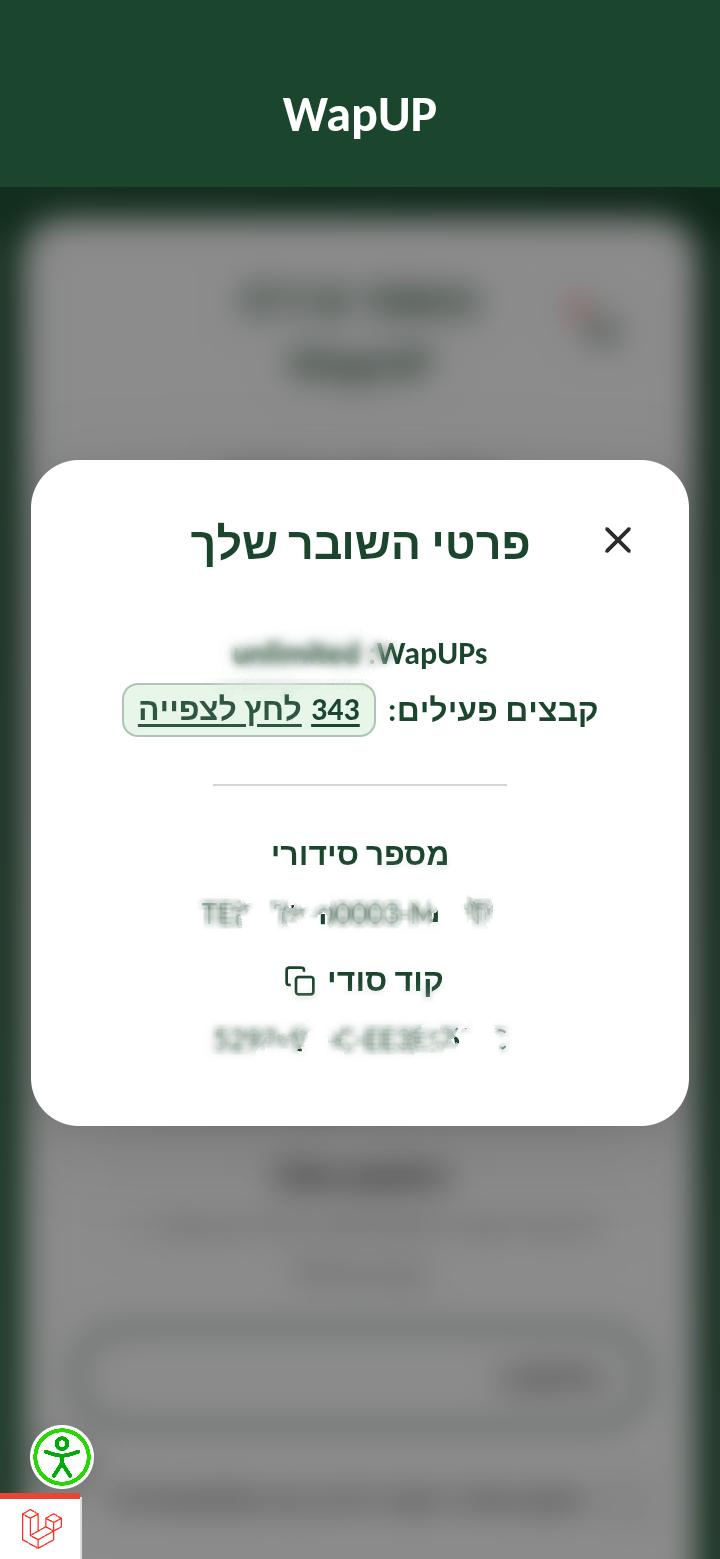
Menu: voucher, files & WapUPs

  • Open the menu icon on the WhatsApp form to see your voucher details.
  • View your active generated file and available downloads — they remain accessible for 24 hours.
  • Check your WapUP usage to see how many conversions you have left.
  • See your voucher serial number and secret (hidden) code.
Menu: voucher, files & WapUPs

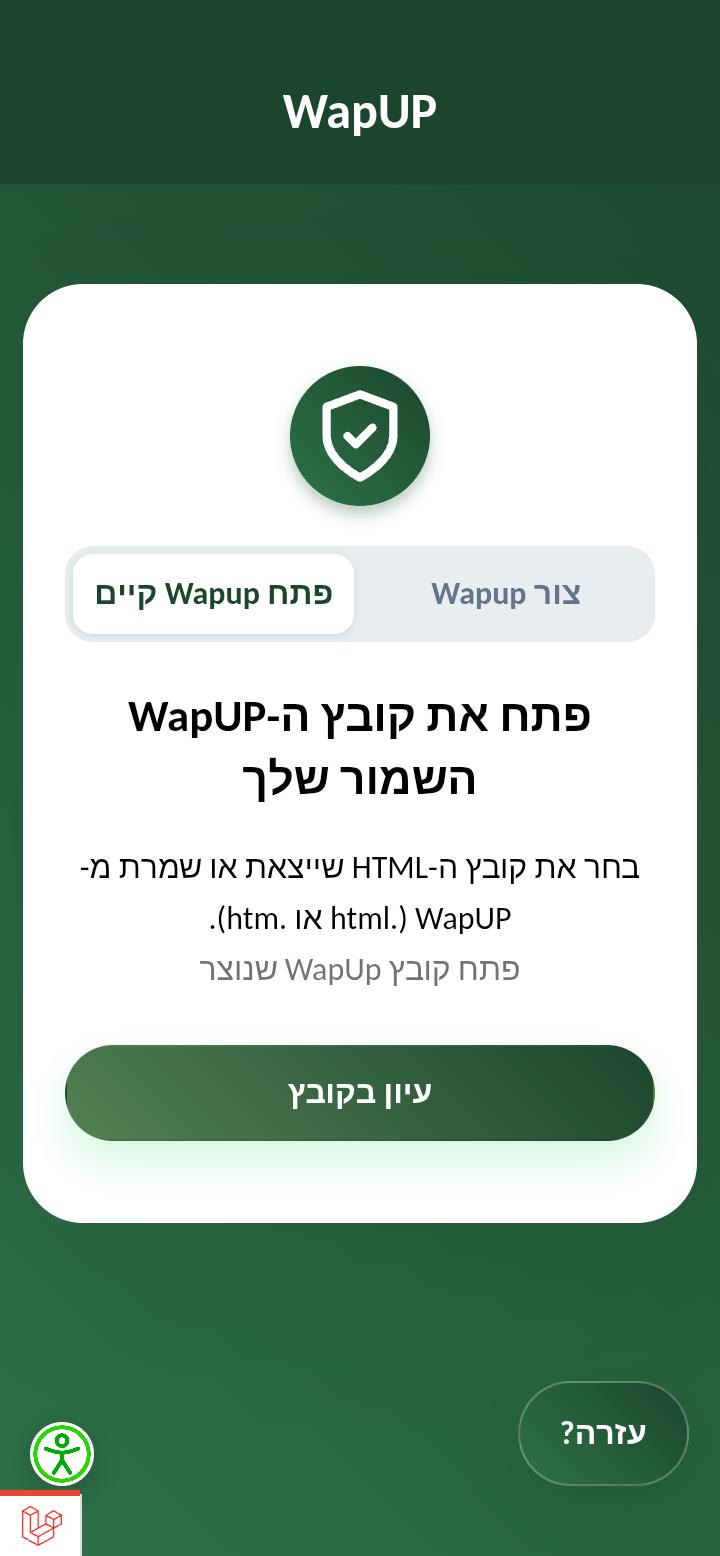
Open a WapUp file with Browse

  • Tap the Browse button on the welcome or access screen.
  • Select your saved WapUp HTML file from your device.
  • The file opens so you can view your WapUp export.
Open a WapUp file with Browse

Additional Information

  • Finish Button - While filling the WhatsApp form, the user can click on the "Finish" button
  • Clicking "Finish" will log the user out of their account
  • To log in again, the user must re-enter their secret code
  • Start Again Button - Located at the bottom of the page
  • If the user faces any issues, they can click "Start Again"
  • This will end all active sessions and log the user out completely
Additional Information

Support

Need help? Our support team is here for you. Contact us by phone or email:

Accessibility
Accessibility